# 기본

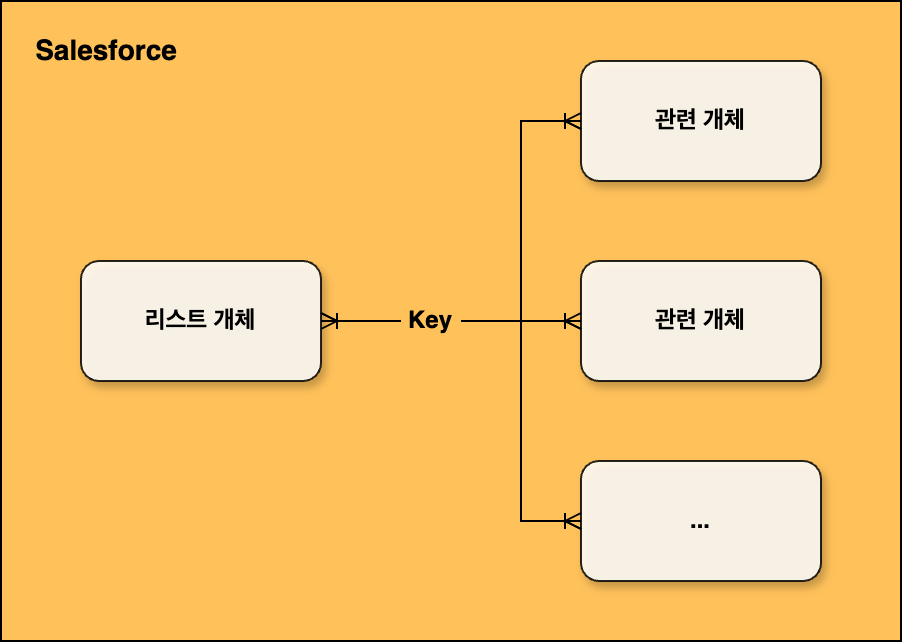
**Salesforce 내 관련 개체를 조회하여 데이터를 함께 표현할 때 기본 데이터 소스를 활용할 수 있습니다.** 기본 데이터 소스를 활용하면 관련 개체 간 데이터 통합을 통해 여러 개체의 정보를 하나의 List View에서 확인할 수 있으며, 실시간 데이터 연동으로 연결된 개체의 데이터가 변경될 때 자동으로 반영되어 항상 최신 정보를 제공합니다. 이러한 기능들을 통해 사용자는 더 포괄적이고 통합된 데이터 뷰를 얻을 수 있어 정보에 기반한 의사결정을 더욱 효과적으로 수행할 수 있습니다.

<figure><img src="/files/hoMGbbgQB9DE3B5PKJzY" alt="" width="375"><figcaption></figcaption></figure>

예를 들어 리스트 구성기에 설정된 개체가 Product2이고 해당 제품의 PricebookEntry에 있는 단가를 같이 표시하고 싶을 때, 기본 데이터 소스를 이용해 조건에 맞는 PricebookEntry를 조회하여 제품과 단가를 같이 표현할 수 있습니다.

{% hint style="info" %}
데이터 소스는 다중으로 구성 및 설정이 가능합니다.
{% endhint %}

***

### :small\_orange\_diamond: 설정 방법

1\. :heavy\_plus\_sign: 버튼을 클릭하여 데이터 소스를 추가합니다.

<figure><img src="/files/aiBsrHYNrkUjIUTzjJDv" alt=""><figcaption><p>데이터 소스 설정 화면</p></figcaption></figure>

2\. 데이터 소스 대상 개체를 검색 후 선택합니다.

<figure><img src="/files/0cOEV5QfMUS0wRotZP7c" alt=""><figcaption><p>개체 검색</p></figcaption></figure>

3\. 활성화 여부, 설명(Description), 조건(Conditions), [<mark style="color:blue;">작업(Actions)</mark>](/ko/smallbuilder-lists/undefined-1-1/datasource-setup/basic-datasource/add-and-configure-actions.md)을 설정합니다.

<figure><img src="/files/lj9u1Inbm0HdgGiKeRtu" alt=""><figcaption><p>데이터 소스 설정</p></figcaption></figure>

<table><thead><tr><th width="96">번호</th><th width="146">필드명 및 영역</th><th width="401">설명</th><th>필수</th></tr></thead><tbody><tr><td>1</td><td>활성화</td><td>데이터 소스를 활성화합니다. 활성화가 되어 있지 않으면 리스트 구성 시 작동되지 않습니다.</td><td></td></tr><tr><td>2</td><td>설명<br>(Description)</td><td>데이터 소스에 대한 설명을 기입합니다.</td><td></td></tr><tr><td>3</td><td>조건<br>(Conditions)</td><td><p>데이터 소스 지정 개체 조회 시 조건이 필요한 경우 작성합니다. 쿼리 마법사(Query Wizard)를 이용해 조건문을 쉽게 작성할 수 있습니다. (<a href="/pages/c3Jz3c9QA1l3MMpbF7Kl"><mark style="color:blue;">SOQL Query ></mark></a>)</p><p><br><span data-gb-custom-inline data-tag="emoji" data-code="26a0">⚠️</span> 리스트 지정 개체의 필드를 이용해 조건문 작성 시 ＇=＇이 아닌 ＇IN＇으로 작성해야 합니다. (<code>$Current</code>는 리스트 지정 개체를 의미합니다.)</p><p><br><span data-gb-custom-inline data-tag="emoji" data-code="1f197">🆗</span> <code>Product2Id IN {$Current.Id}</code><br><span data-gb-custom-inline data-tag="emoji" data-code="274c">❌</span> <code>Product2Id = {$Current.Id}</code></p></td><td></td></tr><tr><td>4</td><td><a href="/pages/SxA23vDbyVWuXhLbkUnB"><mark style="color:blue;">작업</mark><br><mark style="color:blue;">(Action)</mark></a></td><td>데이터 소스에서 가져온 정보를 리스트와 통합하기 위해 필드 매핑 작업을 수행합니다.</td><td><mark style="color:red;">✔️</mark></td></tr></tbody></table>

***


---

# Agent Instructions: Querying This Documentation

If you need additional information that is not directly available in this page, you can query the documentation dynamically by asking a question.

Perform an HTTP GET request on the current page URL with the `ask` query parameter:

```
GET https://help.smallbuilder.com/ko/smallbuilder-lists/undefined-1-1/datasource-setup/basic-datasource.md?ask=<question>
```

The question should be specific, self-contained, and written in natural language.
The response will contain a direct answer to the question and relevant excerpts and sources from the documentation.

Use this mechanism when the answer is not explicitly present in the current page, you need clarification or additional context, or you want to retrieve related documentation sections.
